Organisation | Catalogue | Performances
 Translations
Pre-requisite: create the Events
Aim: manage your performances
Description:

1. Filters and main screen buttons
2. Edit multi-performance
4. Change Logical Configuration
Top screen filters will give you the ability to display all the performances of the selected event, or to restrict the display based on dates, site, spaces etc. You can also set a filter based on the producer contact when used.
If no Event is selected, then the screen will remain empty.
The following buttons perform actions at performance level. In some cases, it is possible to select several performances:
Run | Run all | Suspend | Suspend all | Cancel | Close | Close all | Repair configurations | Repair NN gauges |
|---|---|---|---|---|---|---|---|---|
Activate the performance so it can follow rules set in the Activity Profile. | Activat | Stop (temporarily) the following of the rules of the Activity profile for the performance. Used to make a few changes while on sale. | Stop (temporarily) the following of the rules of the Activity profile for all the performances. | Cancel the performance | Close the performance (figures are locked, and it is no longer possible to perform actions like sales, exchange/cancellation, cancel reservation, duplication or reprint). When Season Tickets contain all the performances, closing one performance will usually result in the impossibility to reprint the season ticket itself. | Close all the performances (figures are locked, and it is no longer possible to perform actions like sales, exchange/cancellation, cancel reservation, duplication or reprint). When Season Tickets contain all the performances, closing one performance will usually result in the impossibility to reprint the season ticket itself. | Recalculate the gauges of all the numbered area of the selected performances. | Recalculate the gauges of all the non numbered area of the selected perfomance. Useful for performances with un when having discrepancies (seats that appear as available while already sold for example). |
Edit multi-performances | Unnumbered areas | Select another rate table | Modify price | Fee | Starting time | Plan | Change logical conf | Planned quotas | Change planned quotas | Export to Excel |
|---|---|---|---|---|---|---|---|---|---|---|
Modify elements at match level. More details below at section 2. Edit multi-performance | Access the unnumbered area management screen to manage contingents and categories. | Change the rate table associated to the selected performances to apply another one. | Change the price set in your rate table at performance level. This will automatically create a "child" rate table in which you will apply your modifications. | Modify the fees that apply | Change the date, time and status (Final date) of a performance.
| Access the seatmap related to that particular performance. | Allows you to change the logical configuration associated to a single or a set of performances. | This functionality is relevant to the case of sales conducted separately from seating, with quotas set independently of the seat map. This button allows you to adapt the planned quotas on the performance selected below, to override those defined earlier in the logical configuration. | This functionality is relevant to the case of sales conducted separately from seating, with quotas set independently of the seat map. This button allows you to copy again the planned quotas, on the performance selected below, from a different logical configuration. | Export the table with all the performances to an excel file |
Italian Certification | Specific behaviour
Italian clients using a Certified S-360 license cannot modify prices and rate table of performances in running/suspend/close/cancelled state.
Moreover, due to Italian law, also other menus are hidden (ex. "Fee"), not allowed (post seating, so "Planned quotas" features are not relevant), or to be used only after informing SIAE ("Starting time").
Selecting one or several perfomances, this screen gives you the ability to modify elements that were set up during performance creation.
In the Parameter tab, you can there choose to apply specific Ticket Template or External Description for this/these match/es.
Note: when you select several performances, the elements that can be changed, and that are different from each other in the current situation, appear with an orange background.
Please also note that some fields can not be changed (or at least not from this screen)
The seatmap screen can be used the same way as for Organisation | Venue | Logical Configurations.
This button is a shortcut to the third submenu of the screen opening when double clicking on the perfomance (Sales paramenter plan):
Main menu
allows to export your seat map in PNG format. You can select the whole map or an area, including details or legend, in a given format (A4, A3...) | |
List blocks | when blocks are used, you can change the filling rank. The block with the smallest filling rank will be filled in first in a scenario of automatic seat assignment. |
Export configuration | exports selected items in a cs |
Import Configuration | allows to import from a csv file. Used to copy a configuration from another season or from another organization |
Unlock seats | allows to unlock frozen or invalidated seats from a list. |
Remove map cache | some parts are cached to improve performances, In some instances, cleaning the cache is necessary to avoid cosmetic errors in the display of the map (it can sometimes be suggested by SECUTIX support team) |
View
No colouring // Public text | all the filters in the first section of this menu trigger a specific view of the map, for example by seat category, area, etc... |
|---|---|
State markers | enables the view of "Sales/Booked seats" mark, as well as "Complimentary", "Frozen" and "Invalidated" seat marks |
Row number // Skyboxes | all these section's options enables the view of the related details |
Access control chart | enables a chart in the bottom of the screen displaying the number of controlled tickets over the time |
Access control ticket summary | enables a side window displaying the number of controlled tickets over the time per timeslot |
Color configuration | allows to change color for different elements of the map. See advanced features |
Optimal seat selection
You can modify the "heat" of each seat. The lower the value, the better the view from the seat. Seats will the best view will be assigned in priority based on SECUTIX algorithm.
For small venues (containing less than 3000 seats), you can click on a seat and manually change the heat value of this seat.
For larger venues, you can only apply a "snake" heat pattern for each block. Instructions are displayed directly in the SECUTIX application.
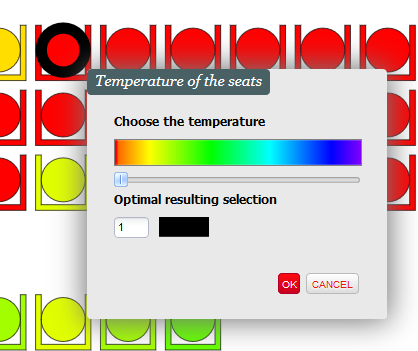
Once selected, an optimal selection helper will appear when the mouse cursor hovers over the menu icon
Save / Propagate
While saving will apply the changes on the specif performance only, "Propagate" allows to apply them also to other performances:
Undo
Filters
Filter button will open the following screen, where it is possible to customize the view according the needs. The checkbox on the right will quickly toggle all the selected filters.
Search
When clicked, the magnifier icon will open a search field that allows to look for Contact name, Area, Block, Row, and File number
Changing logical configuration is possible only if the seats that are sold in the current logical configuration exists in the targeted new logical configuration.
This existence is based on areaCode-blockCode-rowNumber-seatNumber.
So you need to make sure that your sold seats exist in the new configuration. Otherwise SECUTIX will display an error message and the change will not occur.
Note that sold seat will keep their sales parameters, and won't change categories nor contingents.
You will then be able just to select, and add to the right, the new configuration you want to apply for the selected match. Some use case can be:
1) original configuration with no seat map → add a seat map
2) original configuration with a seat map → add more seats (or remove some, if not already sold)
3) original configuration with a seat map → change contingents and seat categories (not applied to sold/reserved seats)
Return to logical configuration (sold seats will not be affected):
if not ticked, the change of logical configuration will only deal with the seats that are different (so just adding and/or removing the delta) between the 2 configurations.
if ticked, the change of logical configuration will apply the change of seat categories and contingent on all the seats that are not sold/reserved.
With copy of the planned quotas: in the case of post-seating,
if not ticked, planned quotas set in the current/initial logical configuration are kept in the new logical configuration.
if ticked, planned quotas defined in the new logical configuration will be applied
Add matching seat categories of the new logical configuration to all activity profiles: if your new logical configuration is using different seat categories than the initial one, those new seat categories will be added into all your activity profiles so the categories will be authorized on all sales channels.